

The sellers losing money on Amazon ads are not always the ones with bad products or weak bids. They are often the ones making decisions based on an incomplete view of their own data.
The Amazon ads dashboard has changed significantly over the past few years, and the 2026 console overhaul made most existing guides obsolete. If you have been working through the interface by instinct - clicking around, pulling reports manually, ignoring tabs you do not recognise - this guide will change how you work inside it.
Amazon's advertising services revenue reached $56.2 billion in 2024, up from $46.9 billion the prior year, and yet most sellers managing campaigns inside the platform have never made it past the default Campaign Manager view.
This is a complete, section-by-section walkthrough of the Amazon advertising console 2026, written for sellers, PPC managers, and brand operators who want to extract real value from the native interface without defaulting to a third-party tool for every task. Xneeti, a multi-marketplace AI platform built by ex-Amazon insiders and ex-Google engineers, operates inside this console daily, and everything in this guide reflects what that ground-level experience looks like in practice.
What Is the Amazon Ads Dashboard ?
The Amazon advertising dashboard is not one single place, it is two, and most sellers do not realise they are using the limited version. Amazon gives sellers access to ads through Seller Central, but that view is a stripped-down interface designed for simplicity, not performance management. The full Amazon Ads Console is a separate platform entirely, and it is where serious campaign management actually happens.
Knowing which one you are working in matters. The right choice depends on where you are in your advertising journey.
- Seller Central Ads View — Suited for brand new sellers running their first Sponsored Products campaign and needing a simple, guided experience.
- Full Amazon Ads Console — Built for intermediate sellers, PPC managers, and agencies who need access to bulk operations, advanced reporting, audience targeting, and AMC data.
Amazon's official guide to accessing the Ads Console walks through how to set up and navigate your account, a useful starting point if you are making the switch from Seller Central for the first time.
What are the core panels of Amazon Ads Console?
The Amazon Ads Console is organised into distinct functional panels, each built for a different layer of campaign management. Most sellers spend 90% of their time inside Campaign Manager and never open the remaining panels - and that is exactly where the performance gap between average and advanced sellers starts.
Campaign Manager
Campaign Manager is the default landing panel where you create, monitor, and edit all active Sponsored Products, Sponsored Brands, and Sponsored Display campaigns. The default metrics view covers the basics, but without column customisation, it hides the data that actually drives decisions.
Bulk Operations
Bulk Operations lets you download your entire account into a structured sheet, make mass changes to bids, budgets, and keywords, and re-upload everything in one go - no third-party tool needed. For anyone managing 20+ campaigns, this panel alone eliminates hours of manual editing every week.
Measurement & Reporting
This is where Search Term Reports, Placement Reports, and Targeting Reports actually live - buried under menu labels that give no obvious indication of what is inside. Most sellers never find these reports, not because they do not exist, but because nothing in the default dashboard points you here.
Audiences
The Audiences panel gives you access to Amazon's first-party segments - in-market shoppers, lifestyle audiences, and remarketing lists built from product page visitors and past purchasers. These segments apply directly to Sponsored Display and DSP campaigns, making this panel important for any brand running upper-funnel or retargeting activity.
Ads Agent
Ads Agent is Amazon's AI recommendation engine, launched at unBoxed 2025, and it now appears as a persistent sidebar inside the Amazon ads manager console - surfacing bid adjustments, budget increase suggestions, and new targeting opportunities. These cards carry no performance context, so before acting on any suggestion, cross-reference it against your campaign's ACoS and conversion history first.
Full Funnel Campaigns Wizard
The Full Funnel Campaigns wizard lets you build Sponsored Products, Sponsored Brands, and Sponsored Display campaigns simultaneously through a single guided workflow, accessible directly from the dashboard home screen. It works well for product launches that need full-funnel coverage fast, though experienced managers who want granular control will still prefer building each campaign manually.
AMC / Brand Analytics Tab
Amazon Marketing Cloud surfaces cross-campaign attribution, new-to-brand audience journeys, and full-funnel conversion paths that Campaign Manager cannot show - and as of 2026, eligible sellers can access it directly from the Measurement & Reporting section in the left-hand navigation. If your account qualifies, this tab changes how you think about budget allocation across ad types entirely.
History
The History tab logs every change made to your account - bid adjustments, budget edits, targeting modifications, campaign status changes - with timestamps and user attribution. When a campaign's performance shifts unexpectedly, this is the first place to check. Most sellers never open it, but it is the fastest way to trace what changed and when.
How to Customise Your Amazon Ads Dashboard View and Why the Default View Is Costing You Insight
The default column view inside the Amazon PPC dashboard hides some of the most important performance metrics available in the console. Customising your view takes under two minutes, and it permanently changes the quality of decisions you make from that screen.
To customise columns, open Campaign Manager, click the "Columns" button in the top right of the campaign table, and select "Customise columns" from the dropdown. From there, you can add, remove, and reorder any metric available in the console.
The 10 columns every seller should add to their default campaign view
These are the metrics the default view does not show - the ones that give you a complete picture of campaign health at a glance.
TACoS (Total Advertising Cost of Sale)
TACoS measures ad spend against total revenue, not just ad-attributed revenue, giving you a true picture of advertising efficiency across your entire business. ACoS tells you how ads performed. TACoS tells you whether the whole business is getting healthier.
NTB Orders (New-to-Brand)
NTB Orders show how many orders came from customers who had not purchased from your brand in the last 12 months. Without this column, you cannot tell whether growth is coming from new customers or repeat purchases - two very different things for long-term scaling.
CVR (Conversion Rate)
CVR reveals what percentage of clicks are converting to sales. If CVR drops, the problem is rarely the ad - it is usually the listing, the price, or the reviews. This column lets you catch that before it shows up as wasted spend.
RoAS (Return on Ad Spend)
RoAS is the inverse of ACoS, useful for teams and stakeholders who think in revenue-per-dollar terms rather than cost ratios. It does not tell you anything ACoS does not, but it translates well in executive reporting.
Impression Share
Impression Share shows what percentage of available impressions your campaign is capturing. When this number is low, it usually means budget or bid constraints are cutting you off from available demand - not that the demand is absent.
Top-of-Search Impression Share
This isolates your share of the highest-converting placement on Amazon. If you are trying to build category visibility, this is the number that tells you whether you are actually getting it or not.
Budget Consumed %
Budget Consumed % tells you what proportion of your daily budget has been used at any point in the day. Campaigns that exhaust budget before peak shopping hours go dark exactly when conversion rates are highest. This column catches that before it costs you.
7-Day Total Sales
7-Day Total Sales captures all sales attributed to your ads within a 7-day window, giving a fuller attribution picture than the default 1-day view. This is especially important for higher-consideration products where shoppers take time between clicking and buying.
Viewable Impressions (for Sponsored Display)
Specific to Sponsored Display campaigns, this metric counts only impressions where the ad was actually seen - not just served. An ad served is not an ad seen. This column tells you how much of your Sponsored Display spend was put in front of real eyes.
Click-Share by Placement
This breaks down where your clicks are coming from across Top-of-Search, Rest-of-Search, and Product Pages, so you can adjust placement bid modifiers with actual data behind the decision rather than instinct.
Where Are the Key Reports Inside the Amazon Ads Dashboard?
The most valuable reports inside the Amazon ads reporting dashboard are not on the home screen. They sit inside Measurement & Reporting, under non-intuitive menu labels that most sellers never click.
Search Term Report
Path: Measurement & Reporting → Reports → Create Report → Sponsored Products → Search Term
This report shows every search query that triggered your ads. Use it weekly to cut irrelevant terms and promote converting ones. It is also the fastest way to find high-intent, low-competition keywords already working in your account - queries you are converting on but not explicitly targeting yet.
Placement Report
Path: Measurement & Reporting → Reports → Create Report → Sponsored Products → Placement
This breaks down performance across Top of Search, Rest of Search, and Product Pages. It tells you exactly where to adjust placement bid modifiers - and often reveals that the placement costing you the most is not the one converting best.
Targeting Report
Path: Measurement & Reporting → Reports → Create Report → Sponsored Products → Targeting
This shows performance at the individual keyword and ASIN target level. Use it to identify budget-draining targets with zero conversions. One session with this report regularly surfaces five to ten targets that should be paused or bid down immediately.
Campaign Performance Dashboard
Path: Measurement & Reporting → Campaign Performance
This gives a visual, portfolio-level view of performance trends over time. Use it to spot spend spikes or CVR shifts before they escalate into a real problem.
According to Ecommerce Fastlane, ad spend cannibalization wastes 22% of total ad budget on average, and most sellers never realise it is happening. That is precisely the kind of leak the Search Term and Targeting reports are built to catch and eliminate.
How to Run a Weekly PPC Audit Using Only the Native Dashboard
A structured weekly audit is entirely possible within the Amazon sponsored ads dashboard, no third-party tool required. The key is knowing which panels to visit, in which order, and what action to take at each stop.
Step 1: Open Campaign Manager and sort by spend
Filter by the last 7 days and sort campaigns by spend descending. This surfaces your highest-spending campaigns immediately - exactly where your audit should begin.
Step 2: Flag campaigns exceeding your ACoS target
Identify every campaign where ACoS is above your break-even threshold. These are your immediate priorities for bid reductions before anything else.
Step 3: Pull the Search Term and Placement Reports
In Measurement & Reporting, download both reports for the same 7-day window. Use them to cut irrelevant search terms and identify which placements are converting most efficiently.
Step 4: Review Ads Agent suggestions
Go through the Ads Agent sidebar and cross-reference each suggestion against the campaign's ACoS and conversion history. Accept what the data supports - dismiss or log everything else for a closer look.
Step 5: Apply changes via Bulk Operations
Take all bid and budget decisions from Steps 2–4 and execute them through Bulk Operations in one upload. This eliminates the need to edit campaigns individually and saves significant time.
Step 6: Log findings and set next week's priorities
Record what was changed, what needs further monitoring, and what to investigate in the next review. A simple running log turns a one-off audit into a repeatable weekly workflow.
Amazon Ads Console vs. Third-Party Tools — What the Native Dashboard Can and Can't Do
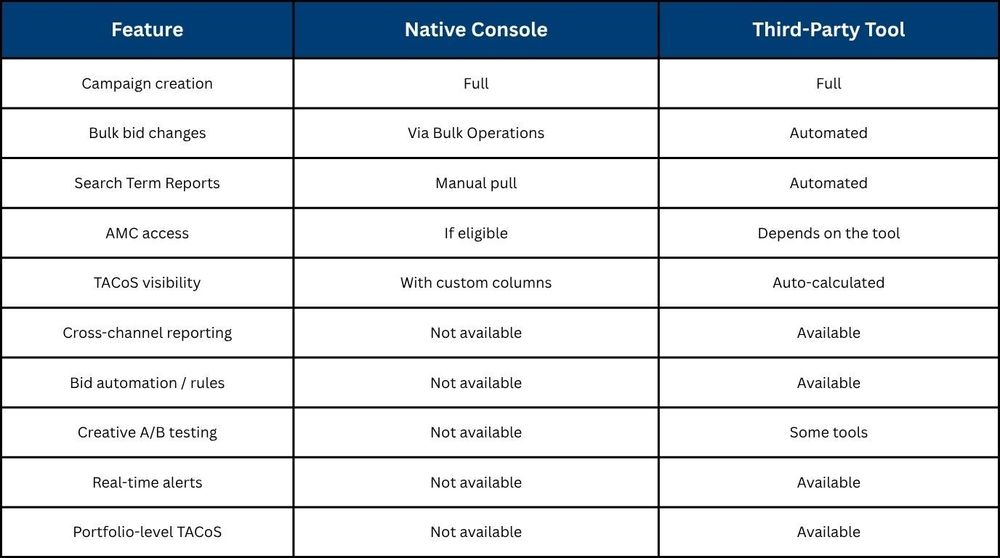
The native Amazon ads manager handles far more than most sellers give it credit for campaign creation, bulk editing, reporting, and even AMC access are all built in. But it has real ceilings around automation, cross-channel visibility, and predictive intelligence that become limiting as ad spend and account complexity grow.
How Does Xneeti Take Your Amazon Advertising Dashboard Beyond the Native Console?
Xneeti is built on top of everything the native Amazon Ads dashboard offers, adding the automation, attribution depth, and continuous intelligence that the Amazon advertising dashboard alone cannot provide. The native console gives you data. Xneeti gives you the intelligence to act on it correctly, continuously, in real time, without waiting for a weekly report, a support ticket, or a manual export. For sellers who want more than execution-level visibility, OneOS is the layer that makes the difference.
- Portfolio-Level TACoS in One View: Unlike the native Amazon PPC dashboard, where TACoS requires manual column setup per campaign, Xneeti's natively built AI surfaces it automatically across every ASIN, every campaign type, and every ad format in a single consolidated view, no exports, no spreadsheets, no manual stitching. What used to take hours of reconciliation happens instantly, every time you open the dashboard.
- AMC Attribution Without the Manual Querying: Inside the Amazon Ads console, AMC data requires manual query runs to access path-to-purchase and audience overlap insights. Xneeti's AI processes and surfaces that attribution data automatically, halo effects, new-to-brand rates, full path to purchase, all in plain English, every single time, without a single manual query.
- Real-Time Budget and Performance Alerts: Xneeti notifies you the moment a campaign exceeds its ACoS threshold, exhausts its daily budget before peak hours, or drops below a minimum impression threshold, something the native Amazon campaign manager dashboard has no capability to do on its own. You stop reacting to damage after it has already appeared in your numbers.
- Strategic Oversight That No Dashboard Can Replicate: Xneeti's dedicated account strategists, built by ex-Amazon insiders who managed seller programs from the inside and engineers who built ad systems at Google, don't just read the data. They interpret it in the context of your specific brand, category, and competitive landscape, making the deliberate optimization calls that no dashboard, native or otherwise, can make on its own.
Final Thoughts
The Amazon ads dashboard is a more capable platform than most sellers ever fully use, but its ceiling is execution. It tells you what happened. It does not tell you why, what to prioritise, or what to do next. That layer requires context, experience, and a system built for strategy, not just reporting.
If you are ready to move beyond the native Amazon advertising console and want a clear picture of where your ad spend is working and where it is not, book a free account audit with Xneeti and let our ex-Amazon insiders walk you through exactly what your Amazon Ads dashboard is telling you and what it is costing you to ignore.


